• Skip to primary navigation
  • Skip to content
  • Skip to primary sidebar

Chandler's Ford Today

  • Home
  • About
    • About Chandler’s Ford
    • Chandler’s Ford War Memorial Research
  • Blog
    • Blogging Tips
  • Event
    • Upcoming Events
  • Contact
  • Site Policies
  • Churches
  • Library
  • Eastleigh Basics Bank
  • Community Food Larder at Chandler’s Ford Methodist Church
You are here: Home / Community / Easy Steps to Create Images with Text Using PicMonkey

Easy Steps to Create Images with Text Using PicMonkey

August 1, 2015 By Janet Williams 1 Comment

In this tutorial post, I’ll be showing you step-by-step how to create an image with text.

On Chandler’s Ford Today, all images with added text are created on a free photo editor called PicMonkey.

For each post, I also create a Featured Image measuring 240 x 240 pixels.

You can see all Featured Images to the left of the published posts on the Chandler’s Ford Today Blog page.

Here are some examples:

Thornden sound of music review
Hope Eastleigh 2015
Little shop of horrors Toynbee School, Chandler's Ford
Memories of war years Chandler's Ford by Doug Clews.
growing up in Chandler's Ford Martin Napier

Let’s get started.

How to create a basic 240 x 240 image with text on PicMonkey

Step 1: Click on PicMonkey.

PicMonkey 1 row of icons

Move your cursor and select “Design” and “Custom”.

PicMonkdy 2 Design & Custom

Step 2: Enter a custom size. I choose 240 x 240 for my Featured Images. You could select any measurement which suits your need. Click “Make it”.

PicMonkey 3 Enter a Custome size 240 x 240 pixel Make It

Here is the outcome of my 240 x 240 square.
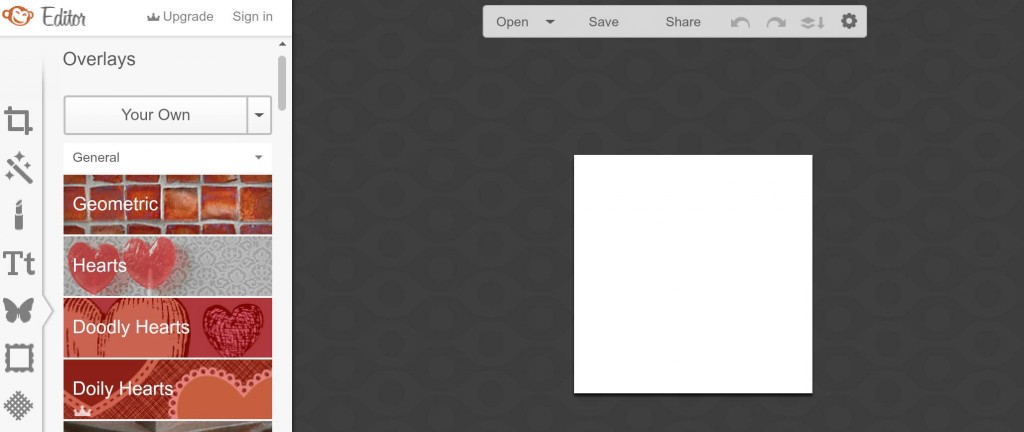
PicMonkey 3 Square featured image box created

Step 3: Now we need to select an image to play.

Look at the vertical panel to the left. See the butterfly logo? Click it. Now you can add an image. But, how?

PicMonkey 5a Overlay Butterfly icon

From “Your Own” under the word “Overlays” (the word “Overlays” is just under the PicMonkey logo – the orange monkey), upload an image.

PicMonkey 6 Your Own picture

Step 4: Now enlarge your image to fill the box you’ve created in Step 2.
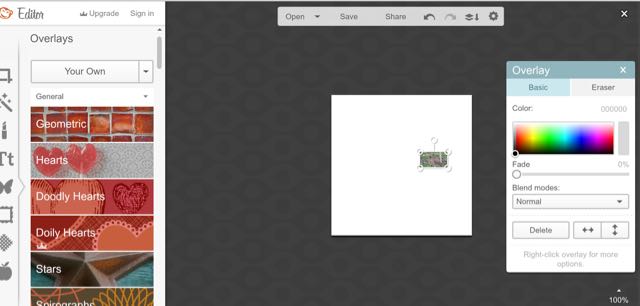
PicMonkey 7a Upload a picture and enlarge

PicMonkey 8a Fill the square

Step 5: To add a text, choose the “Tt” logo from the panel on the left, then “Add Text”. Type and style your text as appropriate.

(Note: Use free fonts. If you pay for an upgrade, you can use those fonts marked with a royal sign too. I only use free fonts.)

PicMonkey 9a Add a text

This is the outcome of a basic Image + Text using PicMonkey. Success!

PicMonkey 10 Kangaroos 1

How to add text on a coloured box

Step A : If you want to layer your text on a box, click on the butterfly icon again. Click on the first option “Geometric”.

PicMonkey 11a Butterfly Geometric Rectangle

Step B: Select a shape to cover part of your chosen image. I often choose the first shape – rectangular – and cover part of my image with this shape.

Style your box (change colour, and use Fade and Blend modes if needed).
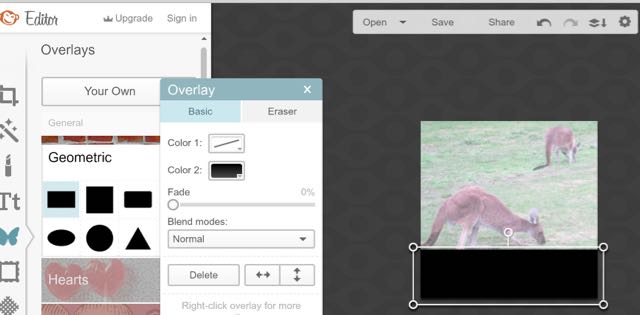
PicMonkey 12a Fill rectangle in colour

After you have created this box, you then add text onto it. Click “Add Text” to add text and style it. (see Step 5).

This is the outcome of a basic Image + Text layered on a coloured box using PicMonkey.

PicMonkey 13 Kangaroos in Perth 2

I hope you find this tutorial helpful.

Chandler’s Ford Today is a low-budget website. I’m not a graphic designer, however PicMonkey has enabled me to be creative with images, and to use images to improve our communication.

I’ll give more tutorials in the future. What else would you like to learn? Let me know in the comment.

I hope you have fun creating images using this method. Be creative!

Never miss out on another blog post. Subscribe here:

Subscribe to Blog via Email

Enter your email address to subscribe to this blog and receive notifications of new posts by email.

Print Friendly, PDF & Email

Share this:

  • Facebook
  • Twitter
  • Google
  • Email

Related posts:

Winchester Photographic Society: Spring Lecture By Martin Parr Roger Clark from Chandler's Ford.Is Chandler’s Ford A Jaguar? Meet Roger Clark. How to Publish Your Book Who Reads Chandler’s Ford Today? John Wilson’s “Dear John” Letter – 20 Years After Thornden School
Tags: blogging, blogging tips, education, hobby, how-to, photography, recommendations, writing

About Janet Williams

I created Chandler's Ford Today. I use this website to share our passions and inspiring stories, to build a connected community. We inform, educate and enlighten. We share resources.

Reader Interactions

Comments

  1. Doug Clews says

    August 4, 2015 at 7:55 am

    Hi Janet …
    Thank you VERY much for your very helpful post on ‘ PicMonkey’ …
    It is, I feel, a very good programme, but not the easiest to navigate, but the end results are well worth the effort …
    You ask what else would we like to see help/tuition on … personally, I would like help with Word Press …
    As you know, I run a blog for Peter Symonds’ School Nostalgia Site on Google Blogger, which I find not very ‘user friendly’ and I am considering ‘importing’ it to Word Press, but I find it all very daunting and confusing …. HELLUP !!!

    Reply

Leave a Reply Cancel reply

Your email address will not be published. Required fields are marked *

This site uses Akismet to reduce spam. Learn how your comment data is processed.

Primary Sidebar

Search

Subscribe to Blog via Email

Enter your email address to subscribe to Chandler's Ford Today blog and receive notifications of new posts by email.

Archives

Top Posts & Pages

Getting The Hooks In

Categories

Tags

am writing arts and crafts books Chandler's Ford Chandler's Ford Today Chandler’s Ford community charity Christianity Christmas church community creative writing culture Eastleigh Eastleigh Borough Council education entertainment event family fiction gardening gardening tips good neighbours Hiltingbury Hiltingbury Road history hobby how-to Joan Adamson Joan Adelaide Goater local businesses local interest memory Methodist Church music nature news reading review social storytelling theatre travel Winchester Road writing

Recent Comments

  • Andy on Andy Vining’s Podcast: My Mother’s Diaries 1948 – 1976: Episode 1 — Introduction
  • Allison Symes on Author Interview – Wendy H Jones – A Right Cozy Historical Crime
  • Sheila Robinson on Author Interview – Wendy H Jones – A Right Cozy Historical Crime
  • Mike Sedgwick on Andy Vining’s Podcast: My Mother’s Diaries 1948 – 1976: Episode 1 — Introduction
  • Andy Vining on Andy’s Story – Part 1: Early Years, Hiltonbury Farm, and… My Old Morris
  • Paul Warwick on Andy’s Story – Part 1: Early Years, Hiltonbury Farm, and… My Old Morris

Regular Writers and Contributors

Janet Williams Allison Symes Mike Sedgwick Rick Goater Doug Clews chippy minton Martin Napier Roger White Andy Vining Gopi Chandroth Nicola Slade Wellie Roger Clark Ray Fishman Hazel Bateman SO53 News

Forty Years in Chandler’s Ford – a Journal by Joan Adelaide Goater

Forty Years in Chandler’s Ford – a Journal by Joan Adelaide Goater

Growing up in Chandler’s Ford: 1950s – 1960s by Martin Napier

Growing up in Chandler’s Ford: 1950s – 1960s by Martin Napier

My Memories of the War Years in Chandler’s Ford 1939 – 1945 by Doug Clews

My Memories of the War Years in Chandler’s Ford 1939 – 1945 by Doug Clews

Chandler’s Ford War Memorial Research by Margaret Doores

Chandler’s Ford War Memorial Research by Margaret Doores

History of Hiltonbury Farmhouse by Andy Vining

History of Hiltonbury Farmhouse by Andy Vining

My Family History in Chandler’s Ford and Hursley by Roger White

My Family History in Chandler’s Ford and Hursley by Roger White

Do You Remember The Hutments? By Nick John

Do You Remember The Hutments? By Nick John

Memory of Peter Green by Wendy Green

Memory of Peter Green by Wendy Green

History of Vickers Armstrongs (Supermarine) Hursley Park by Dave Key

History of Vickers Armstrongs (Supermarine) Hursley Park by Dave Key

Reviews of local performances and places

Reviews of local performances and places

Copyright © 2026 Chandler's Ford Today. WordPress. Log in

loading Cancel
Post was not sent - check your email addresses!
Email check failed, please try again
Sorry, your blog cannot share posts by email.